
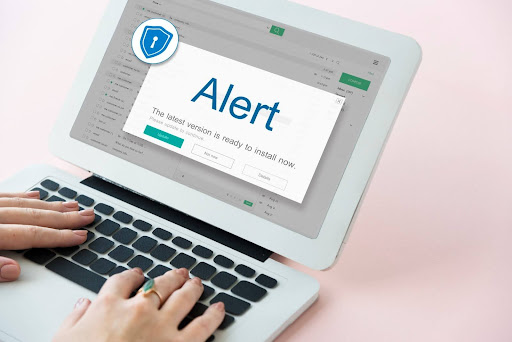
Security alerts are designed to protect us, but hackers are utilizing those same warnings to steal our data and money. Many of us no longer know what is real and what is fake. The problem is growing as attacks become more convincing and more frequent across browsers, phones, and computers.
For locals and employees, that risk is personal. We use our devices every day; a single click too many, and our passwords or financial details are exposed. Recognizing how legitimate notifications differ from scams is now basic digital knowledge, not a technical subject.
Why Security Notification Scams Are Increasing
A fake security notification or an Apple security alert scam is no longer an occasional pop-up, but a threat we encounter daily. As we increasingly conduct banking, work, and communicate through various digital services, fake alerts are among the simplest ways for criminals to exploit our emotions and prompt us to react quickly.
Why attackers use fake alerts to create urgency
Urgency is central to many security alert scams. Attackers want users to act before they think about what they’re doing. Messages might say a device is infected, an account is frozen, or data is about to be wiped, and, combined with a healthy dose of fear and time pressure, they compel you to click links or give up your password.
Why are everyday users the main targets
Scammers prefer volume, known as mass targeting, not precision. Every day, users check their email, browse the news, shop online, and use social media. Thousands of login screens and payment pages offer opportunities for deception, regardless of how they look. Attackers know that most people are not cybersecurity experts, so they exploit these vulnerabilities.
Why Mac and mobile users are increasingly targeted
For a long time, people, especially Apple users, believed their devices were inherently safer, which has created an opportunity for attackers. Mobile devices display alerts on smaller screens, making it more difficult to inspect link or message details. The more people do sensitive tasks on phones and Macs, the more criminals will focus on building scams for that user base.
Real vs. Fake Security Notifications: The Fastest Ways to Tell
Some scams mimic genuine operating system warnings so effectively that you can’t rely on visual design to judge them anymore. Increasing numbers of users report receiving messages that look identical to a realistic Apple threat notification. Learning how these scams work is vital, as identifying a fake Apple security alert is the first step toward building the technical knowledge you need. Attackers impersonate trusted brands to evoke panic and urgency through a fake virus alert, learning all about them through the Moonlock guide is your first step.
However, know that the biggest difference usually comes down to presentation and intent. Real security notifications emphasize alerting you and protecting you. Scam alerts emphasize scaring you and pushing a reaction. If a message is speedy, pushy, or shifty, be skeptical.
Common Types of Scam Security Alerts People See Today
Today, a fake Apple virus warning is no longer blatantly spammy, and many use real system language and branding in order to trick victims.
The four most common types of fake security alerts include:
- Browser pop-up virus warnings: These alerts, typically encountered while browsing harmless websites, falsely state that your device is infected and urge you to click a button to “clean” it.
- Fake account breach notifications. These messages often say someone logged in to your email, bank account, or social media profile, and include a link to “secure” your account.
- Tech support scam alerts. These scams impersonate support agents and often take the form of an Apple scam. The message contains a phone number or opens a chat window. Scammers try to gain remote access to the device or get payment for fake repairs.
- Device infection scare messages. Alerts warn that malware is already erasing files or corrupting your device. They often display fake progress bars or scan results that never occurred.
What To Do Immediately If You See a Suspicious Security Alert
The first step is to verify the alert safely. An unsolicited security warning appears on your screen, claiming your device is infected. Take a breath and think about it. Real antivirus software doesn’t send you pop-ups in your browser.
The next step is to follow the steps if you clicked on the link:
- Disconnect from the Internet
- Run a full-system scan with your antivirus software
- Change your passwords, starting with the most critical accounts
- Watch for fraudulent charges
- Enable Two-Factor Authentication
So, are virus pop-ups real? They definitely aren’t! They are trying to trick you into compromising your security, so beware and check with your security software!
Conclusion
Security notifications should protect you, not pressure you into snap decisions. As scams get more sophisticated, the slowest route is the safest: whenever you receive an unexpected notification, verify it.
Staying alert doesn’t require full technical prowess. It just requires being aware of how a real company talks to you and how scammers play to your fear. If something seems rushed or just too suspicious, closing the alert and checking directly on your computer is almost always the safer choice. In today’s world, taking a breath before clicking is one of the strongest security habits you can have.


